Why AI manuscripts need a formatting pass
AI-generated prose is usually clean at the sentence level but messy at the structural level. Common issues we see in raw drafts:
- Inconsistent heading levels (a chapter title styled as H2 in one chapter, H3 in another)
- Smart quotes mixed with straight quotes
- Em-dashes rendered as double hyphens
- Stray markdown artifacts (
boldleft as literal asterisks) - Section breaks that don't survive EPUB conversion
- Front-matter and back-matter that simply isn't there yet
Readers don't notice good formatting. They notice bad formatting instantly — and so do retailer validators. Amazon KDP will reject an EPUB with broken nav.xhtml. IngramSpark will flag PDFs with embedded fonts they can't license.
What "publish-ready" actually means
Different destinations want different things. Before you format, know where the file is going:
- Reflowable EPUB (Kindle, Apple Books, Kobo, Google Play): semantic HTML, no fixed page breaks except between chapters, embedded cover, valid TOC.
- Print PDF (KDP Print, IngramSpark, DocToPrint): fixed trim size (commonly 6×9 in for nonfiction, 5.5×8.5 in for fiction), embedded fonts, mirror margins, page numbers that skip front matter.
- DOCX: editable Word file — useful for beta readers, agents, or services that require it. Should mirror the EPUB structure.
BookBud exports all four (EPUB, PDF, DOCX, and a ZIP bundle) from the same source. The cleaner your manuscript inside the editor, the less you'll fight any single format on the way out.
Step-by-step: format your AI draft in BookBud
1. Open the project and audit the outline
From your dashboard, click into the book you want to publish. Before touching any prose, look at the left-hand outline panel and confirm every chapter has the same depth structure (e.g., Chapter → 3–6 sections, no orphan sections at the top level).
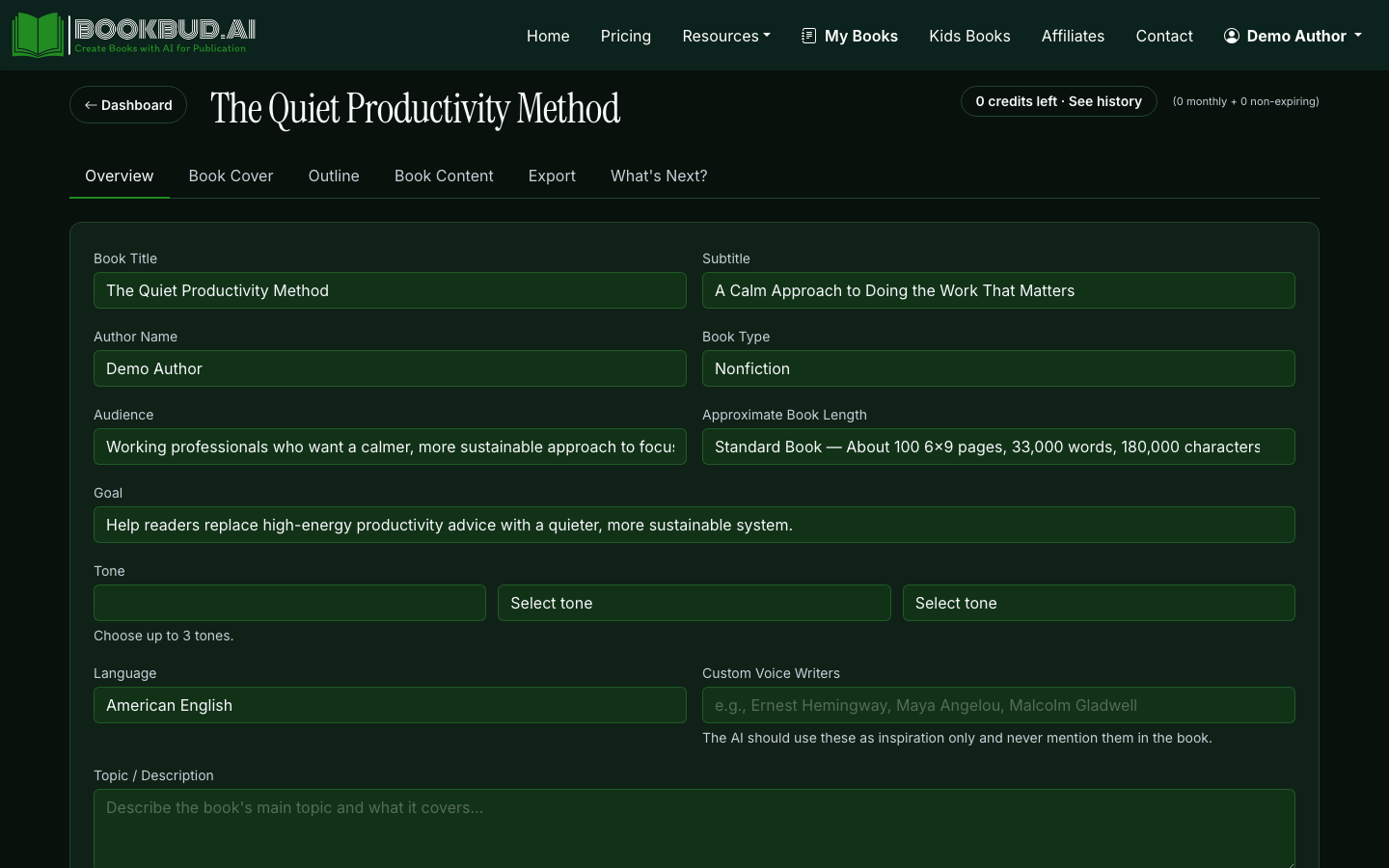
If you generated chapters at different times with different prompts, it's normal to find one chapter with eight sub-sections and another with two. Merge or split now — restructuring after export is painful.
2. Standardize heading levels
In the Quill editor, every chapter title should be the same heading level (we recommend H1), and every sub-section the same level below it (H2). Walk the document top to bottom:
- Highlight each chapter title and apply Heading 1
- Highlight each section subhead and apply Heading 2
- Reserve H3 for rare third-level breaks
This is what builds your table of contents on export. Inconsistent heading levels = a broken TOC in the EPUB.
3. Clean up typographic artifacts
AI models occasionally emit raw markdown or mismatched punctuation. Do a pass for:
- Literal
asterisksor_underscores_around words → re-apply as bold/italic in the editor - Double hyphens
--→ replace with em-dashes— - Three dots
...→ replace with ellipsis…(or leave as three dots, but be consistent) - Curly vs. straight quotes — pick one and stick to it (curly looks more professional in print)
Use Find & Replace if your editor supports it, or a quick scroll-through. Twenty minutes here saves a one-star review about "messy formatting."
4. Add scene breaks and section dividers
AI drafts often run scenes together. Where you want a visual break (time jump, POV shift), insert a centered separator — three asterisks * * * on their own line is the convention. Don't use blank lines alone; EPUB readers collapse them.
5. Write or generate front matter and back matter
A publish-ready manuscript needs more than chapters. At minimum:
- Title page — title, subtitle, author name
- Copyright page — © year, author, ISBN if you have one, "All rights reserved" line
- Dedication (optional)
- Table of Contents (BookBud generates this from your headings on export)
- About the Author at the back
- Also By [Author] if you have other titles
Add these as sections in BookBud just like chapters. For nonfiction, also consider an introduction and a references/citations section if you used the verified citations toggle.
6. Generate or upload your cover
Use BookBud's cover generator with one of the style presets, or upload a designer-made file. Specs that pass nearly every retailer:
- Ebook cover: 2560 × 1600 px, JPG, sRGB, under 5 MB
- Print cover: full wrap including spine, generated separately by DocToPrint based on final page count
7. Run a generation pass for any thin sections
Use the Generate Full Book / continue controls to fill in any section that's still light, then re-edit. Formatting is easier when content is final — you don't want to restyle a chapter you're about to rewrite.
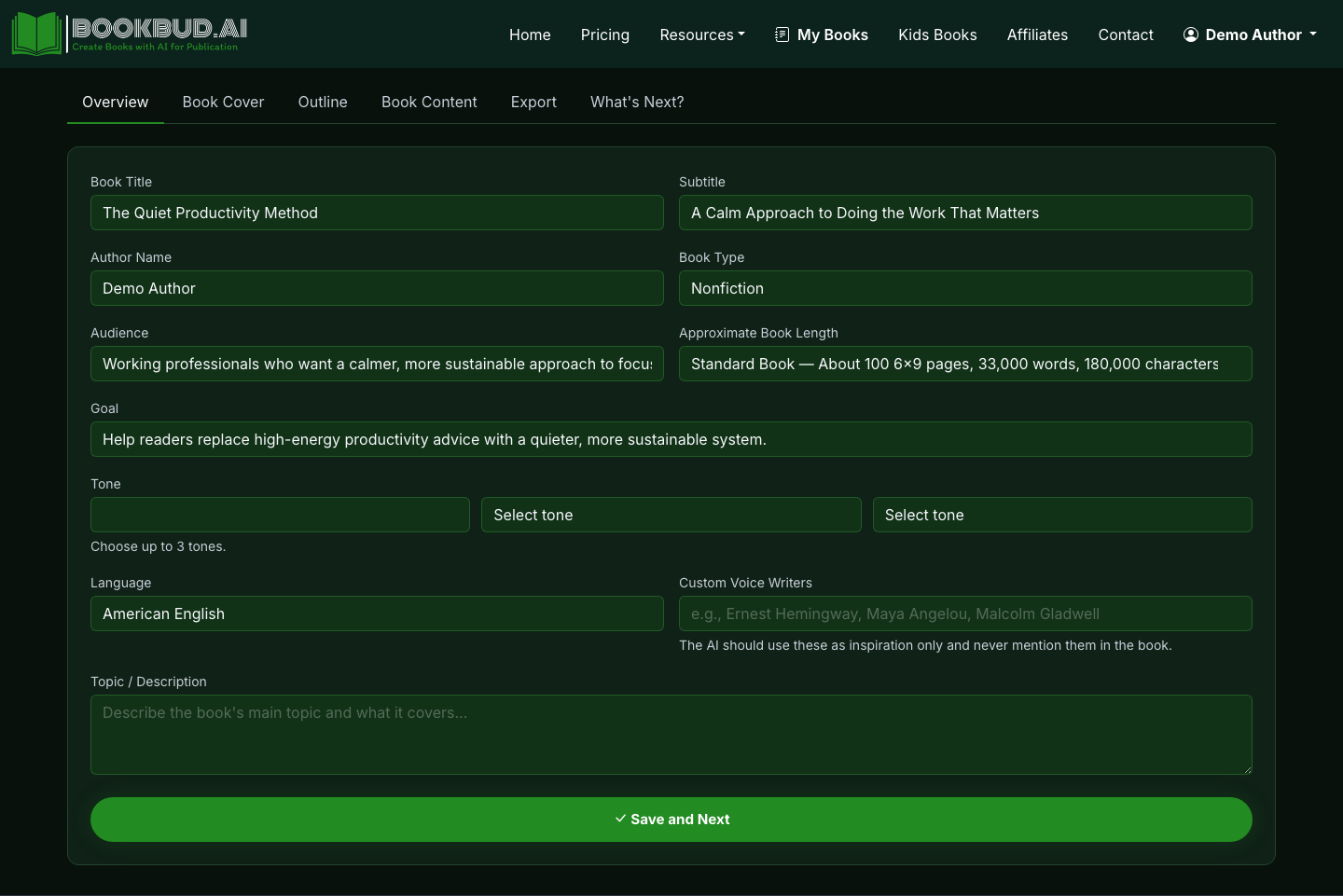
8. Export EPUB first, validate, then export PDF and DOCX
EPUB is the strictest format and the best canary. Export EPUB, open it in a free tool like Calibre or Apple Books, and check:
- TOC matches your chapter list
- Cover appears on the first screen
- No raw markdown or broken images
- Italics and bold render correctly
Only after EPUB looks right should you export PDF (for print) and DOCX (for editing or submission elsewhere). BookBud lets you re-export at any project stage, so iterate freely.
9. Distribute when the file is clean
Once your EPUB validates, use the one-click distribution buttons to push to SelfPublishing.pro for ebook retailers and DocToPrint for print-on-demand.
A realistic time budget
For a 60,000-word AI-drafted book, expect roughly:
- Outline audit and restructuring: 20–30 min
- Heading and typography cleanup: 1–2 hours
- Front/back matter: 30–45 min
- Cover finalization: 15 min to 2 hours depending on revisions
- Export, validate, fix, re-export: 30–60 min
Call it a focused afternoon. Less than that and you're skipping steps; more than that and you're probably rewriting, not formatting — which is a different job.
For more on speeding up the drafting stage itself, see How AI Helps You Write Books Faster.
